Why Google Search Console is critical for an SME
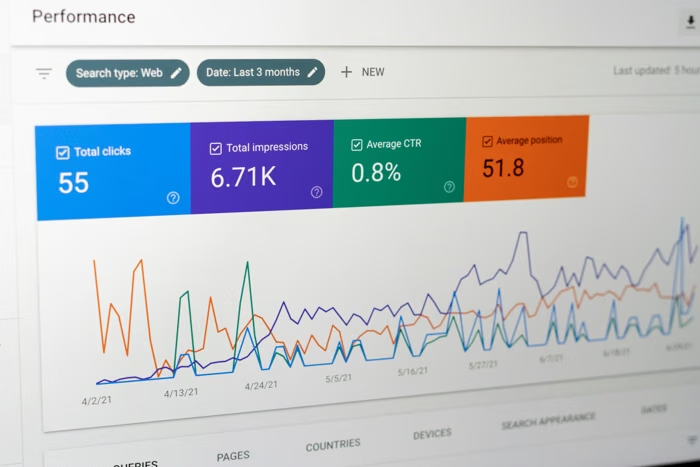
You invested in a website, but are you sure it is visible on Google? Search Console shows how your business appears in search results.
In just a few minutes, you get clear data to improve your online presence, even without technical skills.
- Understand the keywords that bring customers.
- Detect issues that block indexing.
- Measure visibility and click-through rate.
- Prioritize actions to win new clients.
Quick diagnosis
Get a free SEO audit
Fast visibility review
We analyze your Search Console and priority pages to identify growth levers.
Prerequisites before you start
Before configuring Search Console, make sure you have access and key information.
- A professional Google account.
- Access to your hosting provider or developer.
- 15 minutes available for setup.
Quick checklist
This checklist helps you avoid blockers during verification.
| Item | Why it matters |
|---|---|
| DNS access | Verify domain ownership |
| Sitemap | Help Google crawl your pages |
| Admin access | Add tags if needed |
Step 1: Create your Search Console account
Go to search.google.com/search-console and sign in with your Google account.
Click Add property and choose the right type for your site.
- Open Search Console and sign in.
- Click Add property.
- Select Domain or URL prefix.
- Proceed to verification.
Domain or URL prefix?
The Domain type covers all variants (www, http, https). URL prefix is useful for a specific section.
| Option | When to choose it |
|---|---|
| Domain | For a complete site overview |
| URL prefix | For a single URL or subdomain |
Step 2: Verify your site ownership
Google must verify that you own the site. The DNS method is the most reliable.
Propagation can take up to 48 hours, but it is often fast.
DNS verification (recommended)
Add the TXT record provided by Google to your domain DNS settings.
- Copy the TXT record in Search Console.
- Open DNS management with your host.
- Add a TXT record.
- Save and wait a few minutes.
- Click Verify.
Other methods
If DNS access is not possible, choose an alternative method.
- HTML tag in the head of your home page.
- HTML file uploaded to the root.
- Verification via Google Analytics.
Need help
We can verify your site for you
Fast setup
Hand over the verification and setup to our team and save time.
Step 3: Submit your sitemap
The sitemap helps Google discover all your important pages.
In Search Console, open Sitemaps, enter the URL, and submit.
Where to find your sitemap?
Most platforms generate a sitemap automatically.
| Platform | Typical URL |
|---|---|
| WordPress | yoursite.com/sitemap.xml |
| Shopify | yoursite.com/sitemap.xml |
| Wix | yoursite.com/sitemap.xml |
| Nuxt | yoursite.com/sitemap.xml |
Step 4: Configure essential settings
A few simple settings prevent errors and make tracking easier.
- Choose the www or non-www version.
- Make sure your site is on HTTPS.
- Set your target country if you focus locally.
Geographic targeting
If your SME focuses on a local area, this helps Google show your site to the right people.
- Open Settings in Search Console.
- Select your target country.
- Save changes.
Step 5: Understand the dashboard
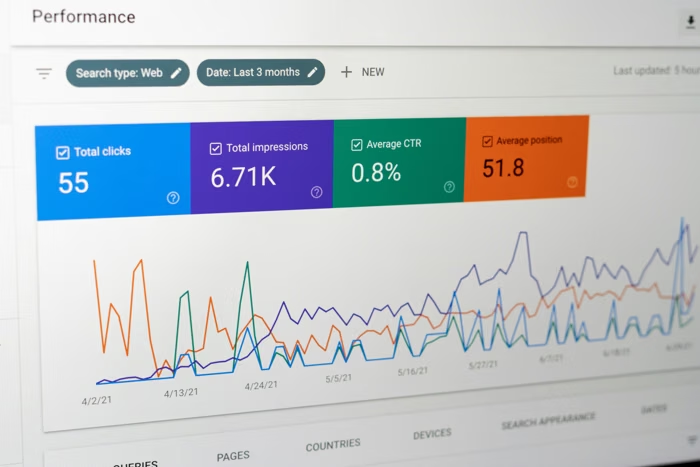
Once configured, Search Console shows your key reports.
These indicators help you spot top pages and growth opportunities.
- Total clicks: traffic from Google.
- Impressions: appearances in results.
- Average CTR: click-through rate.
- Average position: overall ranking.
Indexed pages and page experience
The Pages report shows indexed URLs and errors.
The Page experience report checks speed and mobile readiness.
Priority actions after setup
Take action with a simple plan for the next few weeks.
- Week 1: fix indexing errors.
- Weeks 2-3: analyze keywords.
- Monthly: track clicks and impressions.
- Priority: fix mobile issues.
Action plan
Set up monthly reporting
Simple dashboard
We build clear reporting to monitor visibility and conversions.
Common mistakes to avoid
These mistakes slow results and can block progress.
- Not checking Search Console regularly.
- Ignoring alerts and messages from Google.
- Not acting on collected data.
- Forgetting to submit new pages.
Advanced optimizations for ambitious SMEs
Once the basics are in place, you can go further.
- Review page experience and Core Web Vitals.
- Monitor backlinks and internal links.
- Check structured data (reviews, products, events).
How long before you see results?
SEO is a marathon. Early signals appear quickly, but real results take consistency.
| Stage | Timeline |
|---|---|
| First data | 2 to 3 days |
| Reliable data | 2 to 4 weeks |
| Visible improvements | 3 to 6 months |
When to hire a web agency
Professional support is helpful if you face roadblocks or lack time.
- Sudden traffic drop.
- Many technical errors.
- Competitors consistently outranking you.
- Need a real SEO content strategy.
- Limited internal resources.
Consistency makes the difference: measure, fix, improve.
Support
Work with our SEO experts
Audit and action plan
We analyze your data, fix issues, and build a sustainable strategy.
Final checklist
Use this checklist to confirm everything is set.
- Search Console account created.
- Property verified (DNS or HTML tag).
- Sitemap submitted and accepted.
- Target country defined.
- Preferred domain configured.
- HTTPS enabled and valid.
- No critical indexing errors.
- Mobile compatibility checked.
- First performance review completed.
- Monthly reminder scheduled.
Conclusion
Configuring Search Console is one of the most profitable actions for your online visibility.
Follow this guide step by step. Last update: February 2026.

The CoMi Team
Web agency — CoMi